This guide has every CS2 practice command you need in 2026. Copy and paste the block below into your console and your server is instantly set up for training, or scroll down for a permanent practice config, warmup commands, and smoke and utility practice commands.
CS2 Practice Commands (Copy & Paste)
Open the console (Tilde ~ key) on a local server and paste this single line of CS2 practice commands. It kicks bots, enables cheats, gives you infinite ammo and money, turns on grenade trajectories, and removes freeze time in one shot.
bot_kick; mp_warmup_end; sv_cheats 1; mp_limitteams 0; mp_autoteambalance 0; mp_maxmoney 60000; mp_startmoney 60000; mp_buytime 9999; mp_buy_anywhere 1; mp_freezetime 0; mp_roundtime 60; mp_roundtime_defuse 60; mp_respawn_on_death_ct 1; mp_respawn_on_death_t 1; sv_infinite_ammo 1; sv_showimpacts 1; sv_showimpacts_time 10; ammo_grenade_limit_total 5; sv_grenade_trajectory_prac_pipreview 1; mp_restartgame 1; echo "GhostCap Practice Settings Loaded!";
You'll need to paste this every session. If you'd rather type exec practice once and be done, create a practice config file using the steps below.
CS2 Practice Config: Create Your Own practice.cfg
A config file is a set of commands the game executes to set up your practice environment. You can download a premade config from the GhostCap GitHub repo here (right click, save as) or create your own below.
Steps to Create a Config File:
-
Navigate to the CS2 cfg folder:
C:\Program Files (x86)\Steam\steamapps\common\Counter-Strike Global Offensive\game\csgo\cfg -
Duplicate autoexec.cfg.
-
Clear its contents, and rename it. We recommend naming it
practice.cfgfor easy reference. -
Add the following commands to your new file and save:
// GhostCap Practice Config bot_kick mp_warmup_end sv_cheats 1 mp_limitteams 0 mp_autoteambalance 0 mp_maxmoney 60000 mp_startmoney 60000 mp_buytime 9999 mp_buy_anywhere 1 mp_freezetime 0 mp_roundtime 60 mp_roundtime_defuse 60 mp_respawn_on_death_ct 1 mp_respawn_on_death_t 1 sv_infinite_ammo 1 sv_showimpacts 1 sv_showimpacts_time 10 ammo_grenade_limit_total 5 sv_grenade_trajectory_prac_pipreview 1 mp_restartgame 1 echo "GhostCap Practice Settings Loaded!"
Launching Your Practice Server
Once you have added your config to your CS2 directory, it's time to create a local practice server.
-
Start CS2 and navigate to
Play > Practice > Competitive -
Select the map you desire and click
GO -
Once the map has loaded, open the console (Tilde
~key) -
Execute the created config by typing
exec practice
If you need to start fresh, you will need to restart your game.
CS2 Smoke & Utility Practice Commands
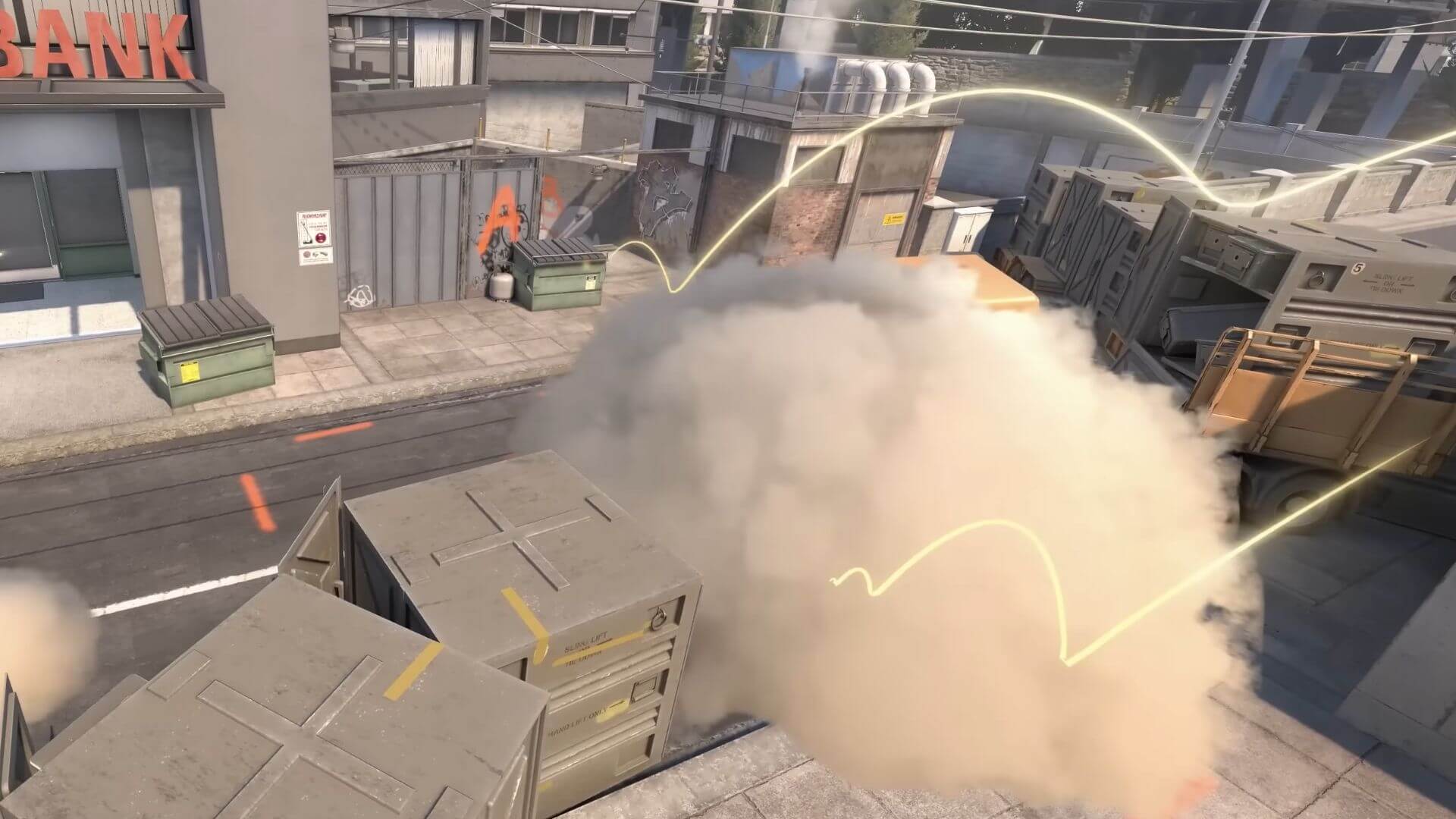
If you came here for CS2 smoke practice commands, the config above already enables the two most important ones: grenade trajectory previews and a raised grenade carry limit. These extra utility practice commands give you full control over smokes, flashes, and molotovs. All of them require sv_cheats 1.
sv_grenade_trajectory_prac_pipreview 1- Shows a picture-in-picture preview of your grenade's flight path and landing spot when you pull the pinsv_grenade_trajectory_prac_trailtime 10- Keeps the trajectory trail visible for 10 seconds (default is 0, this replaces CS'ssv_grenade_trajectory_time)cl_grenadepreview 1- Draws a live trajectory line while you're holding the grenadecl_sim_grenade_trajectory- Simulates the trajectory of the grenade you're currently holding without throwing itsv_rethrow_last_grenade- Rethrows your last grenade so you can watch the landing from a different anglecl_removedecals- Clears blood and bullet holes so your lineups stay visible (the oldr_cleardecalscommand was removed in CS2)ammo_grenade_limit_total 5- Lets you carry five grenades at once
These binds make smoke practice much faster. Paste them into the console and change the keys to whatever suits you.
-
bind "MOUSE5" "noclip"- Lets you fly around the map, perfect for flying to a smoke's landing spot -
bind "n" "sv_rethrow_last_grenade"- Rethrows your last grenade while you watch from the landing position -
bind "j" "cl_removedecals"- Instantly wipes decals between throws
CS2 Warmup Commands
You don't need a separate setup for warmup. The CS2 practice commands above double as warmup commands, since practice, training, and warmup all describe the same thing in Counter-Strike 2: a private server tuned for drilling aim, smokes, and movement before a competitive match.
If you only want a quick CS2 warmup before queuing, run exec practice and you're set. The key warmup commands inside the config are:
mp_warmup_end- Ends the warmup phase immediately so you can start drillingmp_freezetime 0- Removes round-start freeze time entirely (no waiting between rounds)mp_restartgame 1- Restarts the round in 1 second, useful for resetting between drillssv_infinite_ammo 1- Infinite ammo for spray and aim trainingbot_kick- Removes bots so you can focus on your warmup routine
You can also run any of these commands individually from the console without loading the full practice config, which is handy if you only need infinite ammo or a quick warmup reset.
All CS2 Training Commands Explained
Here is a full breakdown of every CS2 training command used in the config above, so you know exactly what each one does before you paste it.
| Command | What It Does |
|---|---|
bot_kick | Removes all bots from the server |
mp_warmup_end | Ends the warmup phase immediately |
sv_cheats 1 | Enables cheat commands (required for practice) |
mp_limitteams 0 | Removes team player limits |
mp_autoteambalance 0 | Disables auto team balancing |
mp_maxmoney 60000 | Sets maximum money to $60,000 |
mp_startmoney 60000 | Sets starting money to $60,000 |
mp_buytime 9999 | Allows buying at any time during the round |
mp_buy_anywhere 1 | Lets you buy anywhere on the map |
mp_freezetime 0 | Removes freeze time at round start |
mp_roundtime 60 | Sets round time to 60 minutes |
mp_roundtime_defuse 60 | Sets defuse mode round time to 60 minutes |
mp_respawn_on_death_ct 1 | CTs respawn after death |
mp_respawn_on_death_t 1 | Ts respawn after death |
sv_infinite_ammo 1 | Gives unlimited ammo |
sv_showimpacts 1 | Shows bullet impact markers |
sv_showimpacts_time 10 | Impact markers stay visible for 10 seconds |
ammo_grenade_limit_total 5 | Carry up to 5 grenades |
sv_grenade_trajectory_prac_pipreview 1 | Shows grenade trajectory lines |
mp_restartgame 1 | Restarts the game after 1 second |
For every other console command in the game, the Total CS command database is the most complete reference.
Switching Maps
If you wish to switch maps, use the map command in the console. For instance, to change to the map de_mirage, type map de_mirage. After changing maps, you may need to reload your CS2 practice config.
Conclusion
Setting up a dedicated practice server in CS2 can greatly enhance your training sessions, allowing you to focus on specific skills like grenade trajectories, spray control, and wall bangs. If you want to practice smokes and executes with your whole team, a hosted CS2 server lets everyone join the same practice lobby with the config preloaded. I hope these commands help you hit your Counter-Strike 2 training goals.