
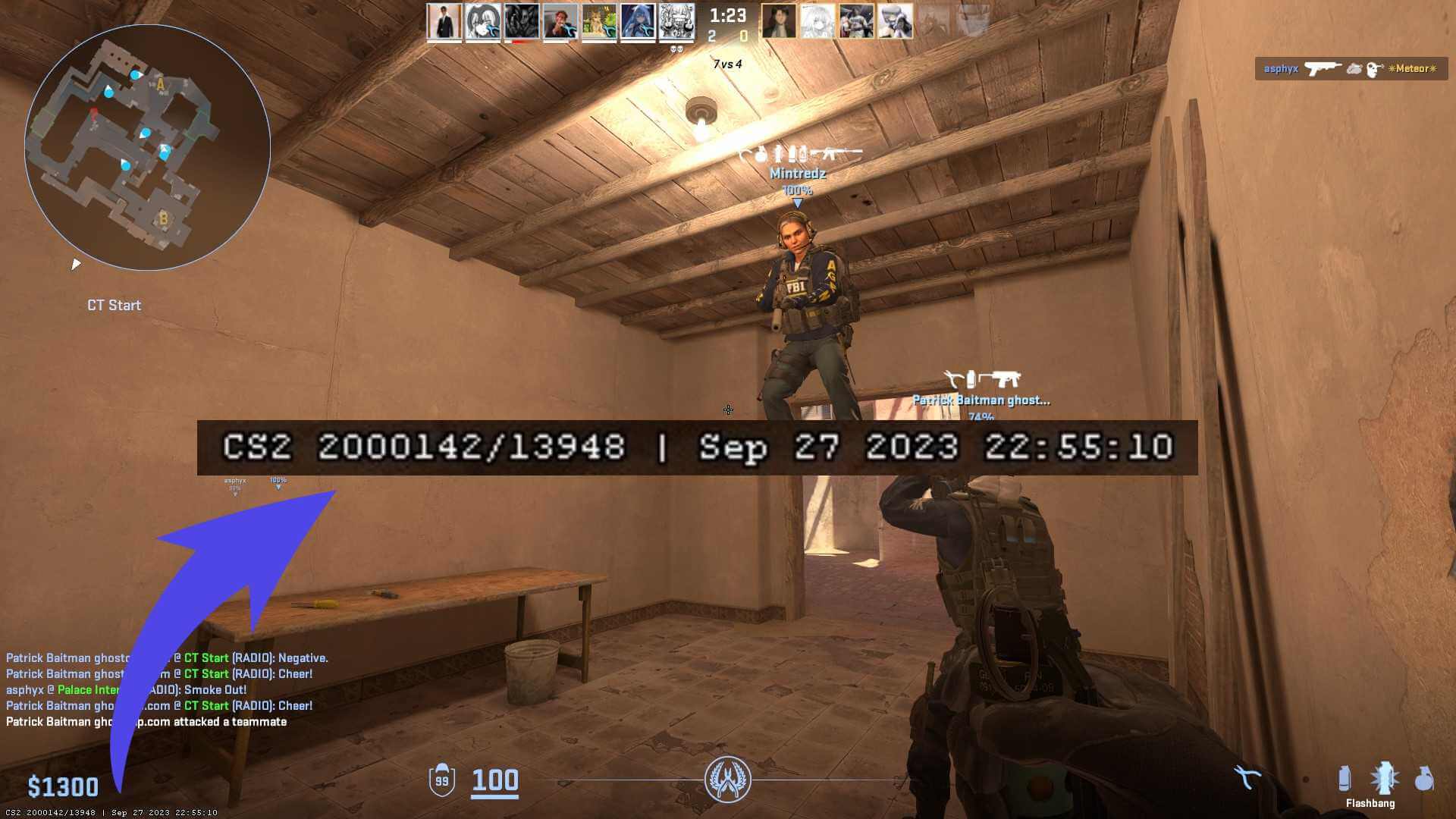
The CS2 build info watermark is the text in the bottom-left corner of your screen showing the game's build date and server hash. One console command removes it, no sv_cheats required, and it's safe to use in matchmaking, Premier, and FACEIT.
CS2 Build Info Command
To remove the build info watermark, open the console and run:
r_show_build_info 0
The text disappears instantly. To bring it back, run r_show_build_info 1. Both 0/1 and false/true work in the Source 2 engine.
Step by step:
- Enable the developer console in Settings → Game → Enable Developer Console.
- Press the tilde (~) key to open the console.
- Type
r_show_build_info 0and press Enter.
If this is the watermark you're trying to remove, you're in the right place.
Make It Permanent with Autoexec
CS2 doesn't always keep this setting between sessions, and updates can reset it. The fix is an autoexec file that runs the command every time the game starts.
- Create a file called
autoexec.cfginSteam\steamapps\common\Counter-Strike Global Offensive\game\csgo\cfg. - Add the line
r_show_build_info 0to the file and save it. - In Steam, right-click CS2 → Properties → Launch Options and add
+exec autoexec.cfg.
Unlike CS
, CS2 does not run autoexec.cfg automatically, so the launch option is required. If you're building out a full autoexec anyway, our CS2 practice config guide covers a ready-made setup.Troubleshooting: Command Not Working
If r_show_build_info 0 does nothing, check these in order:
- Console won't open: the developer console is off by default. Enable it in Settings → Game, or add
-consoleto your launch options. - Typo in the command: it's underscores, not spaces. The full cvar reference is on Total CS.
- Watermark came back: a game update or config reset re-enabled it. Use the autoexec method above so it stays off.
- Different bottom-left text: server messages and demo overlays are separate. See our CS2 commands list for the relevant cvars.
What the Watermark Is For
Valve added the build info overlay so developers can instantly see which build a player is running in bug reports, screenshots, and clips. The server hash also identifies which server you were connected to, which helps when diagnosing issues like black and invisible walls in CS2.
Hiding it during normal play is completely fine. Just flip it back on with r_show_build_info 1 before recording a bug report, and if you run your own server, see our CS2 server hosting guide for the server-side setup.